

In my first post I demonstrated creating a FortiAnalyzer Event Handler to send an email if an admin successfully logs into a FortiGate. It is incredibly important to know who is logging in successfully, but I would argue it is just as important to know who is failing to login. Your network firewall is an extremely high value target for attackers and should be monitored as such. Now, hopefully it is just your firewall admin mistyping their password, which I feel happens to me at least half of the time, but there is a real chance that it is a bad actor. Login attempts can come from outside attackers, compromised inside accounts, or insider threats.
Failed login monitoring can be accomplished a few different ways depending on your preference but now that our previous handler is built, they can be achieved quikly. In my own environment I’ve chosen to create a second handler by cloning the successful login event handler and adjusting the logs it is monitoring. Another way is to add the failed login log monitoring as an “Or” field to the original monitor rule. I’ve chosen to create two separate handlers as it allows me to quickly see the number of times the specific event handler was triggered as well as provide flexibility to use the handlers elsewhere in FortiAnalyzer, like playbooks.
Before creating the event handler, I also wanted to share some of my recommendations for administrator access to a FortiGate.
- Create a loopback interface for admin access – rather than enabling the administrator access on a network interface (whether it’s physical or a VLAN) a loopback allows for one interface for administrators to access. This reduces the amount of configuration needed on the FG, configuration of supporting things like DNS, and allows the use of firewall policies to permit access to the loopback from anywhere administrators could connect from. In my home environment I could be accessing my FortiGates from my wired VLAN or wireless interface. Another reason I recommend a loopback interface is if administrator access is enabled on a VLAN interface, any device/user in the supported subnet will be able to access the administrator services and attempt to login. Finally, it also reduces risk of misconfiguration of admin access across multiple interfaces.
- Only enable the administrative services needed – Do not enable additional administrative services if they are not needed. In my environment I use two – ping and HTTPs. SSH is a typical service to enable, but with the convenience of the CLI widget in the GUI I don’ t find myself connecting via SSH enough to justify enabling. There are other services needed like FortiManager access, FortiToken access, and SNMP but I have them enabled on the specific interfaces needed.
- Add trusted hosts to the administrator accounts – only allow administrators to log in from known IP addresses. This is another control to help lock down access but shouldn’t be the only control used – a user should not be trusted just based on IP address (more on Zero-Trust in the future)
- Do not use shared accounts – the local admin account should never be used for regular administration, and local accounts should not be shared. It becomes harder to prove who is logging into the firewall when accounts are shared. Utilize a 3rd party authentication source with multi-factor authentication for administrators. If you do not have an MFA solution the FortiGate includes two FortiTokens that could be utilized. Depending on your organizations’ risk or compliance need privileged access management may be required.
- Never enable administrator access on public internet facing interfaces – this greatly increases risk by allowing anyone on the internet to attempt to access the FortiGate
- Ensure admin session timeout is appropriate – it may be convenient to set the admin session timeout to a high value but this poses a risk of unauthorized access.
Now let’s get started building our event handler.
Navigate to Incidents & Events > Event Handlers
To help clean up the view we can filter the handlers by custom (EH built locally instead of prebuilt by Fortinet). You can also search for the relevant name on the right.
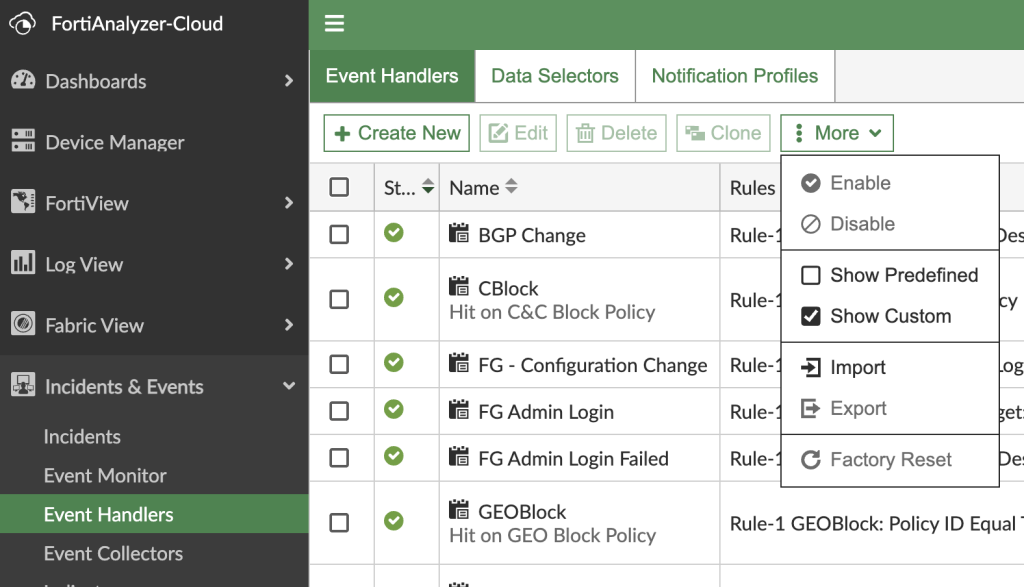
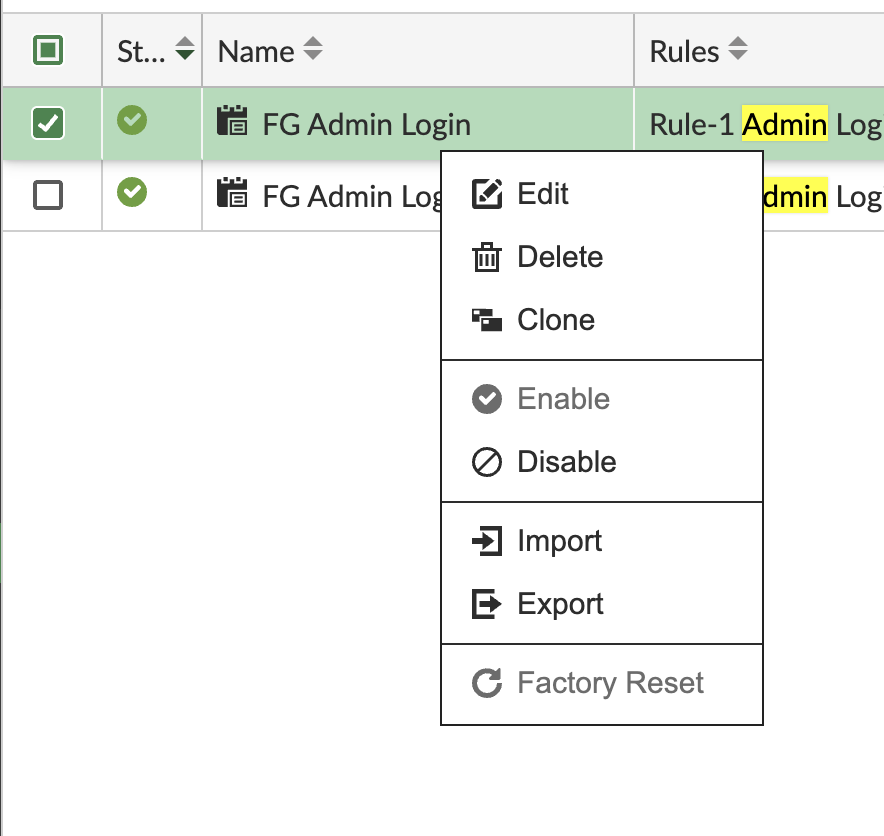
Right click on the successful admin login previously created and select clone. If you haven’t created a successful login previously check my previous post and follow creating a new event handler from scratch with the log filtering configured below.
In the Event Handler popup update the name to reflect the failed log in attempt.
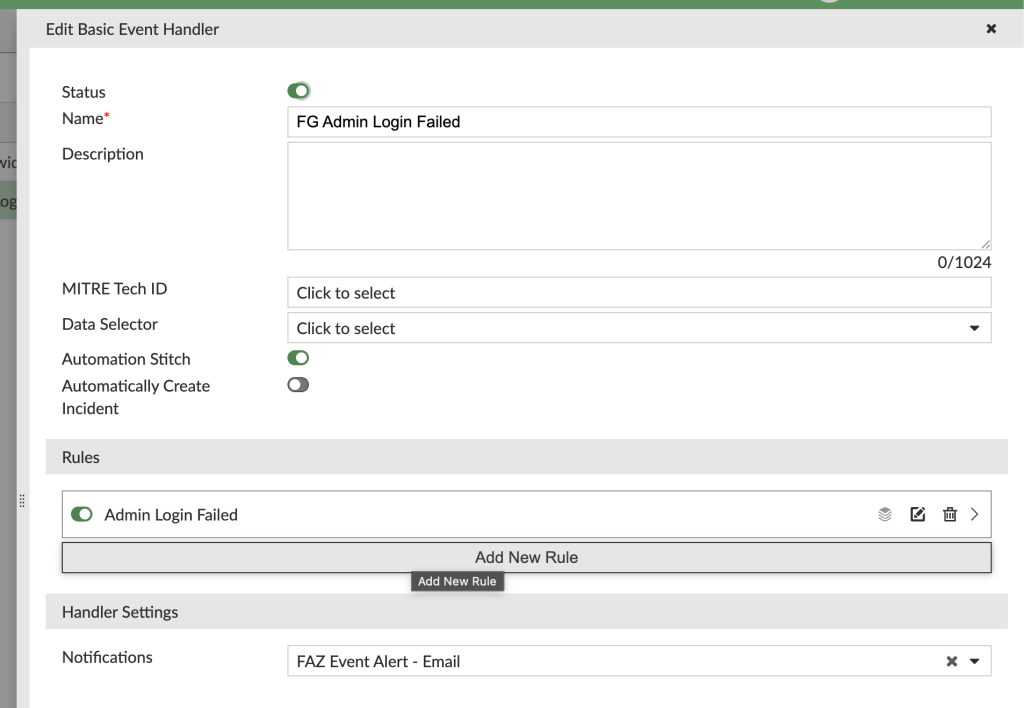
Edit the rule in the handler to update the name and logs it is monitoring
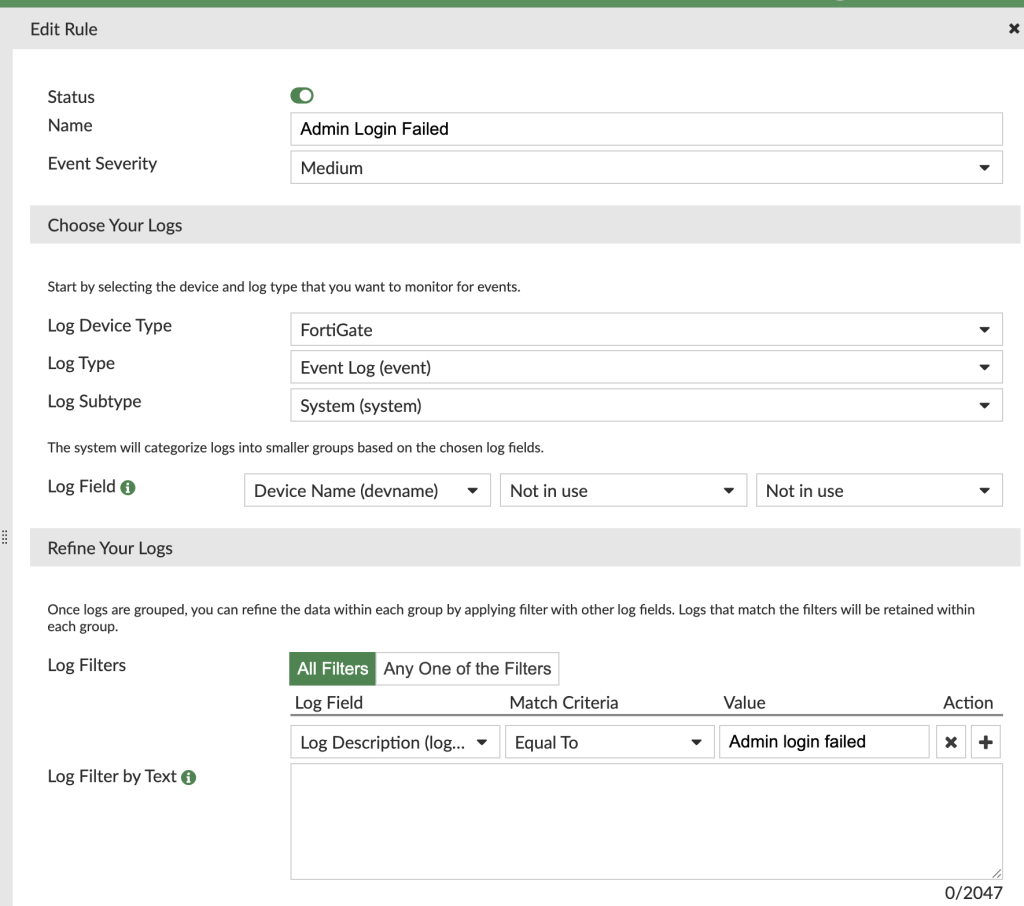
Cloning the successful login has saved us time as the Log Device Type, Log Type, and Log Subtype are all the same as the successful login EH. I also keep the severity the same and grouping the events by device name the same.
For the log filter, we can remove the text filter setup for successful log in and add a filter with the standard filter. Set the filter to Log Description, Equal to, and “Admin login failed”
Notification on the handler will be the same as the successful login where I’ve previously configured email notification.
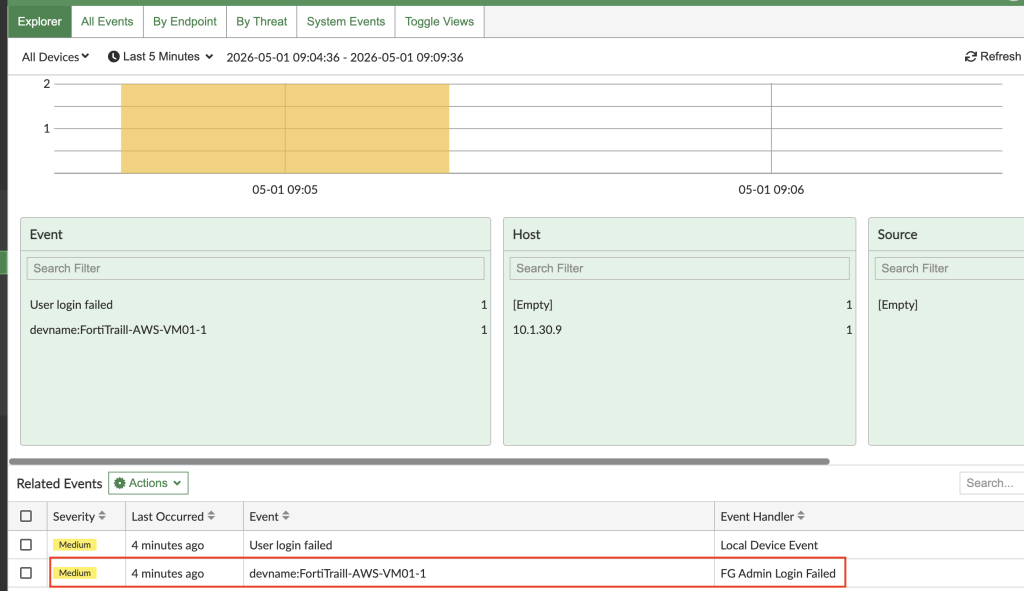
Now that the handler is created events will appear in Incidents & Events > Event Monitor
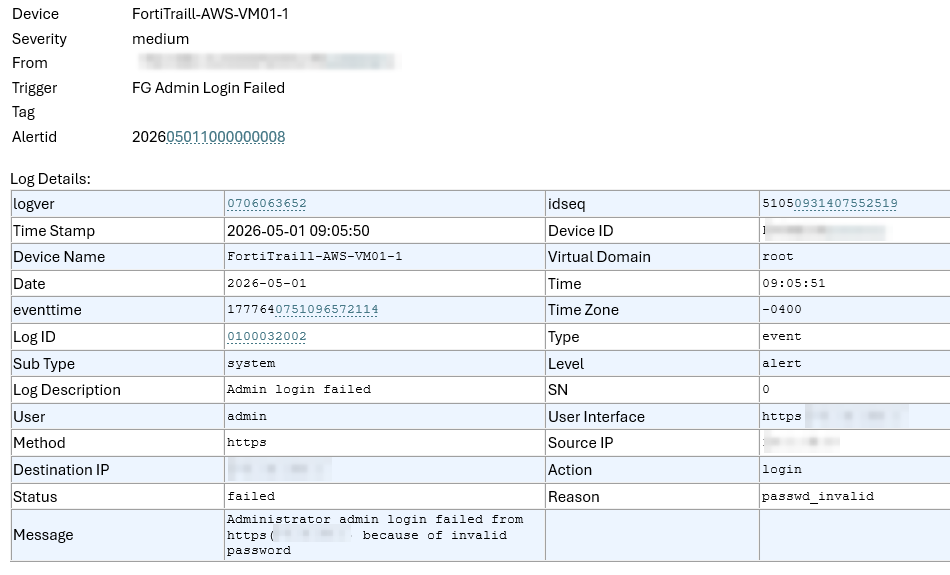
Here is an example of the email sent for the failed login:
In my next post I will complete what I call the “FortiAnalyzer Trifecta” – event handlers for successful logins, failed logins, and configuration changes. Stay tuned.